

Save form responses to Contacts
Contacts keeps one record per person for your whole organization. Every response with an email becomes a contact, and each new response from the same email updates it. Open it from Contacts in the left menu.
Facts on this page were read from the product on 16 November 2026.
Save a form’s responses
Section titled “Save a form’s responses”-
In the form builder, add an Email or Contact info question if the form has none. Contacts are kept by email: without one, nothing from the form is saved.
-
Select the Email question and switch on Save to contacts in the right panel. It saves as the contact’s email. A Contact info question saves first name, last name, email and phone at once; an Address question saves address, city, state / region, postal code and country.
-
Select any other question you want to keep, switch on Save to contacts and pick the Contact property it fills. The list only offers properties that fit the answer — a Number question can fill Lead score, a multiple choice with several answers can fill Tags.
-
Publish the form if you added questions. Turning saving on itself works on the live form right away.
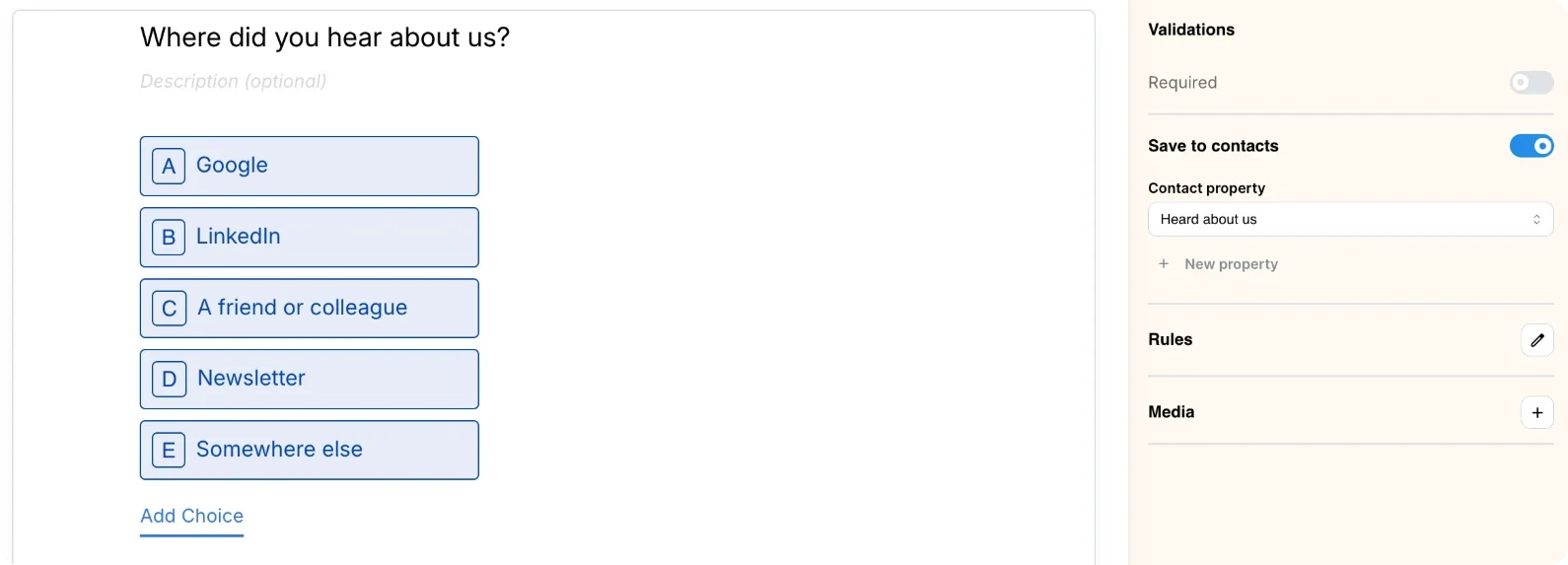
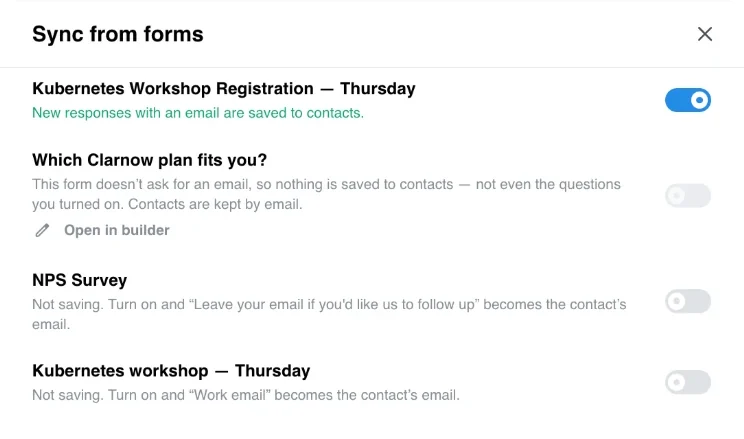
If the form can’t save contacts yet, the builder says why — no email question, the email isn’t saved as the email, the email part of Contact info is hidden — and offers a one-click fix. When the email is optional, it warns that responses without one won’t reach Contacts and offers Make the email required.
The same switch and the list of saved questions are on the form’s Connect page, on the Contacts tile.
UTM tags and lead score
Section titled “UTM tags and lead score”With saving on, a response also fills UTM source, UTM medium and UTM campaign from the form link (?utm_source=…), and Lead score from the score of a lead form. No question has to be mapped. A quiz’s points don’t count as a lead score. To stop it, switch off Save UTM tags and lead score on the form’s Contacts tile. A question you map to the same property wins.
Add the people who answered before
Section titled “Add the people who answered before”Turning saving on only affects new responses. To bring in the people who answered already:
- For one form, open its Contacts tile on Connect and click Add contacts from past responses.
- For several forms, click Sync from forms on the Contacts page. It lists every form with whether it saves contacts and, if not, why — and which question would become the email. Sync N forms turns saving on and adds their past responses.
Past responses are added oldest first, up to 10,000 per form. Running it again adds nothing new. If your team edited a contact after an older response, that response only fills empty properties — it doesn’t overwrite the edit.
How values are merged
Section titled “How values are merged”- One contact per email. Emails are trimmed and matched whatever their case. Dots and
+tagsin an address are kept, so[email protected]is a different contact from[email protected]. - The newest non-empty value wins. A skipped question or an empty cell never clears what the contact has.
- A value that doesn’t fit is left out, the rest of the response still saves — for example text in a Number property.
- Each contact remembers the forms it came from (the latest 50 responses), shown as Forms.
The All contacts tab shows everyone. Click New list to add a tab that shows only the contacts matching its Conditions — the same kind of conditions as in form logic: a property is, isn’t, contains, is empty, is greater than…, or the contact came from a given form. A list updates by itself as contacts change; you never add anyone to it by hand. Deleting a list deletes only the filter.
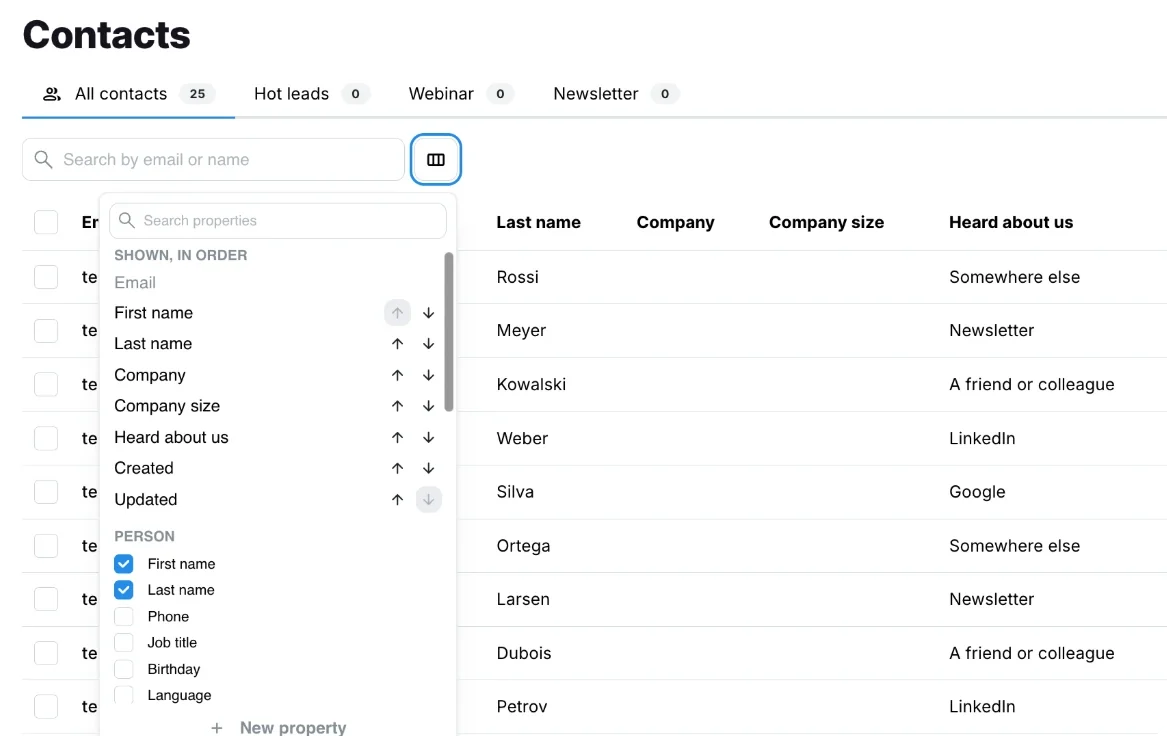
Each tab keeps its own Columns: pick and order the properties it shows. The choice is saved for everyone in your organization.
Properties
Section titled “Properties”Every contact has 26 built-in properties in three groups — Person (name, phone, job title, birthday, address, social links, notes…), Company (company, website, size, industry) and Marketing (marketing consent, lead score, tags, UTM source, medium, campaign) — plus Created, Updated and Last activity, which ClarNow fills in.
Under Manage properties, add up to 100 of your own: text, number, date, yes / no, phone, link or tags. Renaming one keeps its data. Deleting one clears it on every contact and stops forms saving to it — the dialog says how many contacts and forms it touches.
Click a cell in the table, or open a contact, to edit a value in place.
Add, import and export
Section titled “Add, import and export”- Add contact → Add individually — type an email and, if you like, a first and last name. An email that is already a contact updates it.
- Import CSV — the first row names the columns. Choose what each column saves as, or Don’t import; one column has to hold emails. Up to 10,000 rows per file. Rows without a valid email and values that don’t fit their property are skipped, and Download rows with problems gives them back as a file.
- Export CSV — downloads the tab you’re on with its columns and your current search. Re-importing the same file changes nothing.
Which plan do I need for Contacts?
Any plan, including Free.
Why is nothing saved from my form?
A contact is kept by email, so a form saves nothing until it has an Email (or Contact info) question that saves to the contact's email, and that email is shown and answered. The builder and the form's Contacts panel on Connect say which of these is missing and fix it in one click. A response without an email is never saved — if the email is optional, the people who skip it don't become contacts.
What happens when the same person answers twice?
They stay one contact. Emails are matched whatever their case, so [email protected] and [email protected] are the same person. The newest non-empty answer wins, and an empty answer never clears a value the contact already has.
Do I need to publish the form again after turning saving on?
No. Turning saving on or off and choosing what each question saves works on the live form right away. A question you added since the last publish starts saving once you publish it.
Are UTM tags and the lead score saved?
Yes, with no question mapped. UTM source, medium and campaign come from the form link, and Lead score from a lead form's score. A quiz's points are not saved as a lead score. Switch this off on the form's Contacts panel under Connect; a question you map to the same property always wins.
Is a contact in a list?
A list is a saved filter, not a folder. It shows every contact that matches its conditions right now — for example, everyone who came from one form or whose Lead score is over 50. Deleting a list deletes no contact.
If I delete a form or a response, is the contact deleted?
No. The contact keeps what was saved. To remove a person — for example after a GDPR erasure request — delete the contact on the Contacts page; that removes everything saved on it. Form responses stay as they are, so delete the response too if you need to.
Can a respondent see that they are already a contact?
No. The public form only writes to Contacts and never reads from it, so it behaves the same for a new and a known email, and nothing is pre-filled.
Who can change contacts?
Viewers can see contacts. Editors can add, edit, delete, import and export contacts, create lists and properties, and turn saving on for forms. Deleting a list or a custom property is for admins.
Cookie preferences
Required for the site to work — security and your session. No tracking.