

Send ClarNow leads to HubSpot
Every response with an email becomes a HubSpot contact — or updates the one that already has that email — with the quiz score, result and UTM tags in contact properties.
Written for the current ClarNow app and HubSpot’s 2026.09 developer platform.
What the app does
Section titled “What the app does”ClarNow is a conversational form builder for quizzes, scorecards, lead forms and surveys. The HubSpot app sends each new response to your HubSpot CRM as a contact:
- a new email creates a contact; an email HubSpot already knows updates that contact;
- name and phone are filled from the questions you pick;
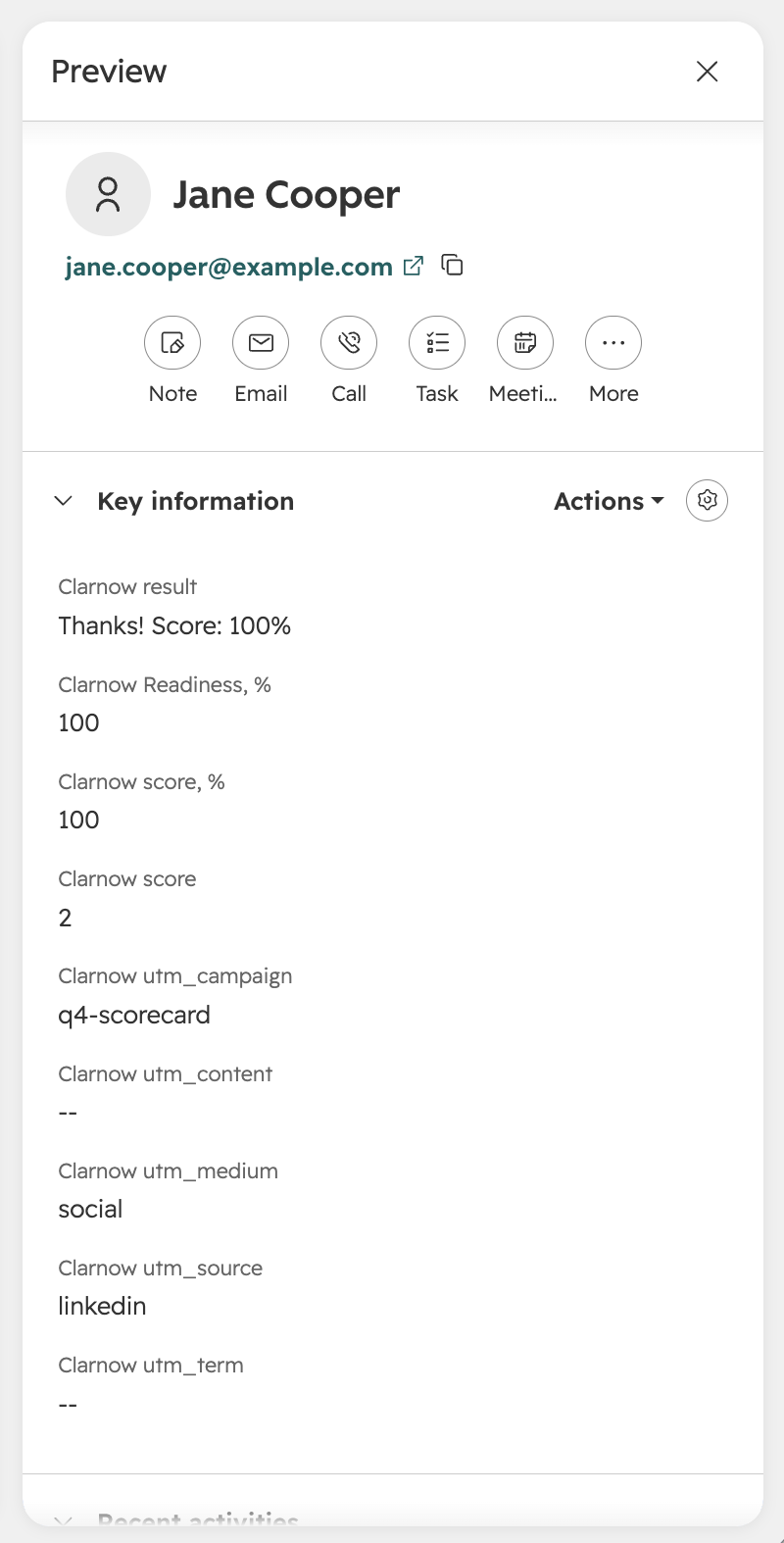
- the quiz or scorecard score, the percent per scoring category and the ending the respondent saw go into contact properties, so you can segment and build workflows on them;
- UTM tags from the form link go along too, so you see which campaign brought each lead.
Data goes one way: ClarNow → HubSpot. Leads usually appear in HubSpot within seconds of the submit.
Requirements
Section titled “Requirements”- A ClarNow organization on the Start plan or higher.
- The admin role in that ClarNow organization — connecting HubSpot is an organization setting.
- A HubSpot account of any edition, including free HubSpot CRM, and a HubSpot user allowed to install apps in it (Super Admin, or the App Marketplace access permission).
- A form with an Email question or a Contact question — HubSpot finds contacts by email.
Install the app and connect HubSpot
Section titled “Install the app and connect HubSpot”You connect HubSpot once for the whole ClarNow organization. You can start from ClarNow or from the HubSpot Marketplace — both lead to the same steps.
-
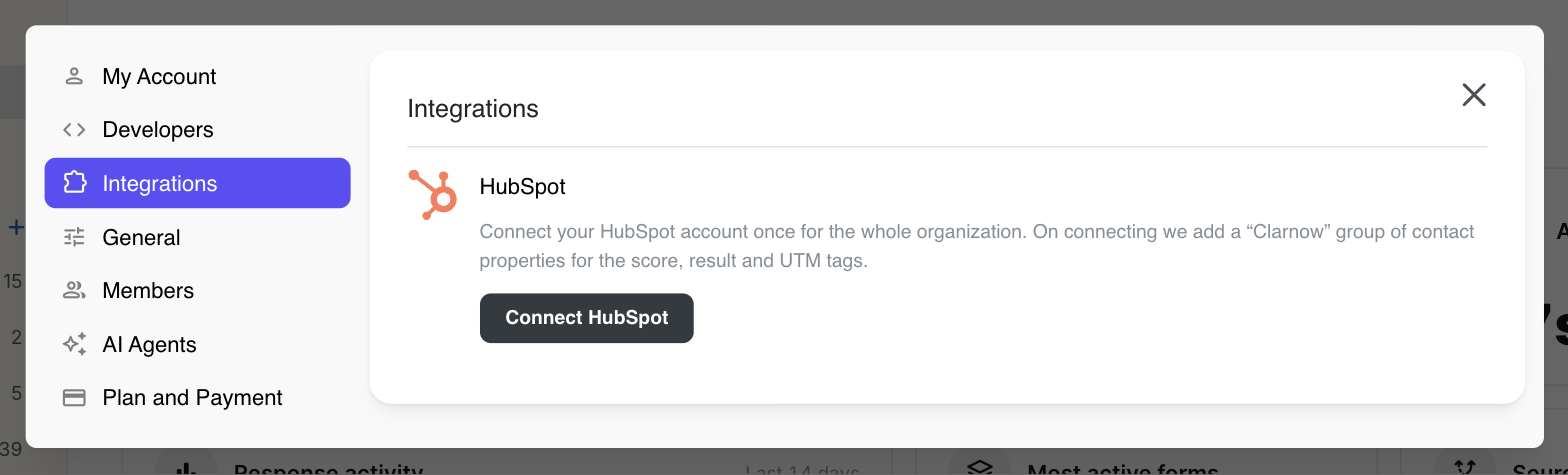
Open organization settings in ClarNow. Click your organization name in the top-left corner and choose Settings, then open the Integrations tab.
-
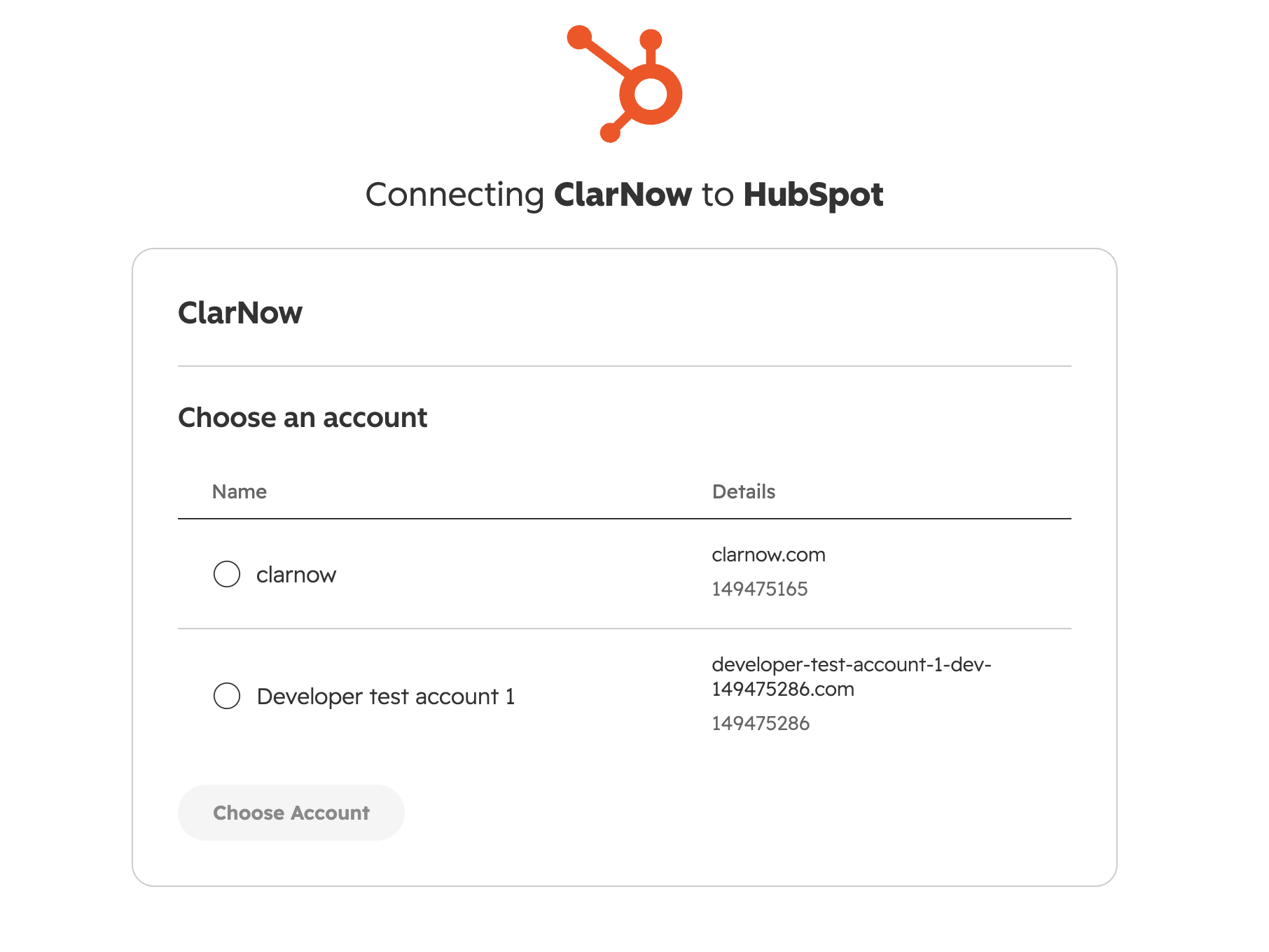
Click “Connect HubSpot”. ClarNow opens HubSpot’s sign-in page. Sign in if you aren’t already and, if you have several HubSpot accounts, choose the one the leads should go to.
-
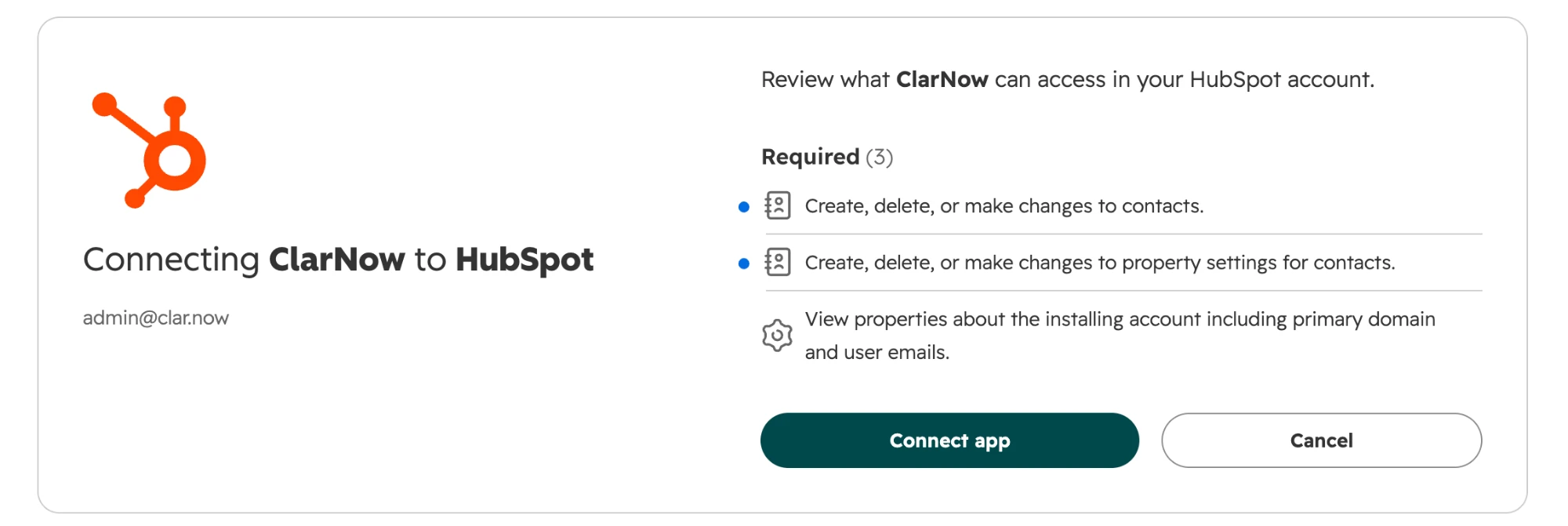
Review and approve the access. HubSpot lists what ClarNow asks for: to write contacts and contact properties — no read access (see Shared data for why each one is needed). Click Connect app.
-
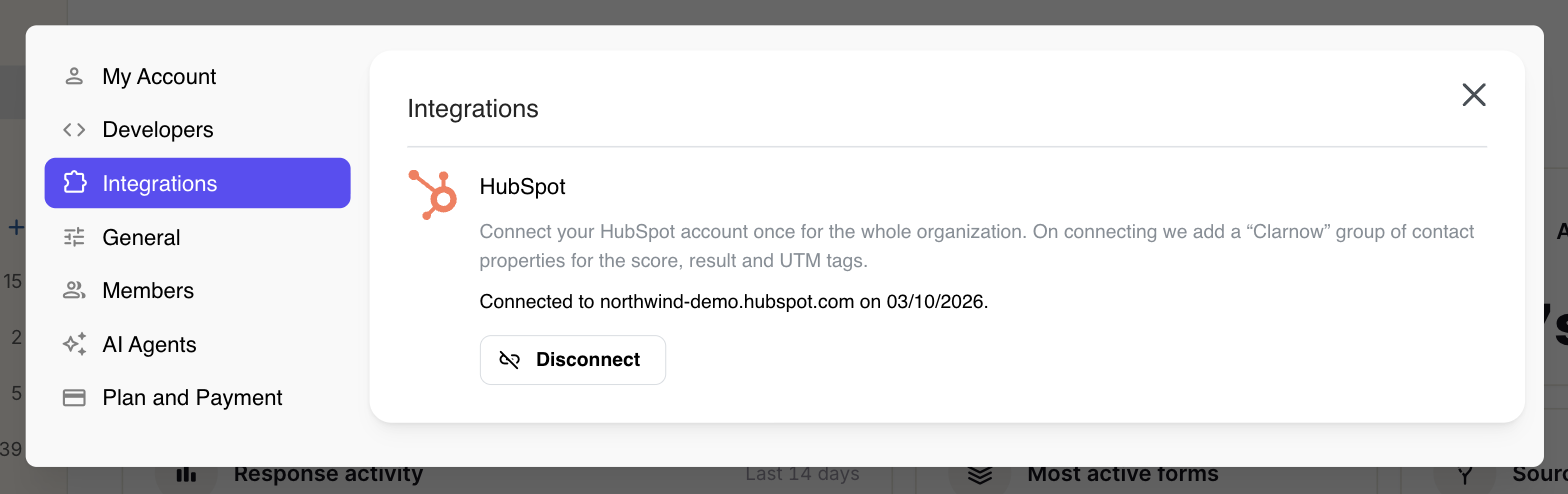
Back in ClarNow. You land on the Integrations tab with “Connected to your-account.hubspot.com”. ClarNow has added a “Clarnow” group of contact properties in HubSpot — nothing else in your account changes.
Configure a form
Section titled “Configure a form”Each form decides on its own whether to send leads and which questions make the contact.
-
Open the form in the ClarNow builder and go to Connect → Integrations. HubSpot is under CRM.
-
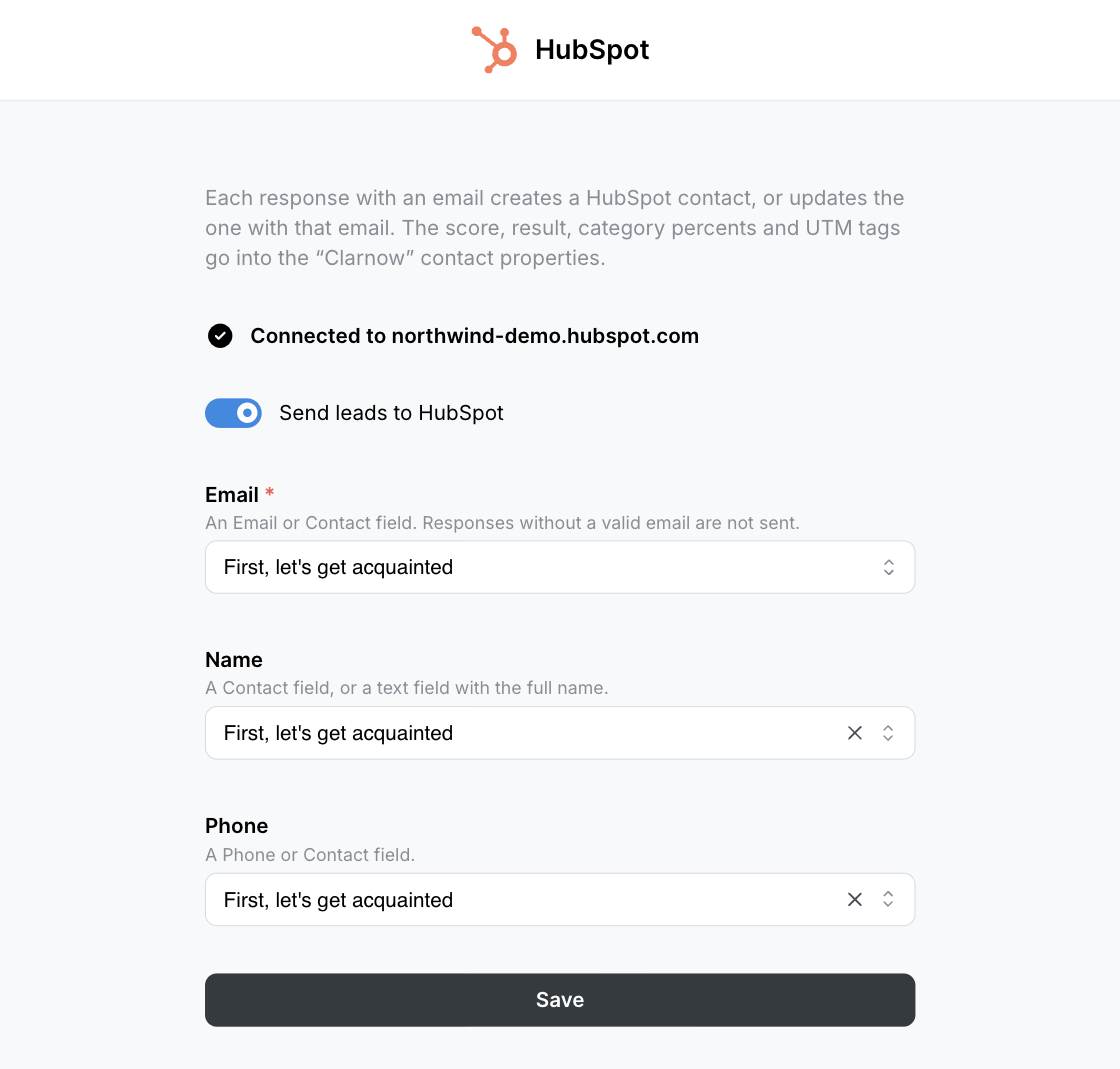
Map the questions. Pick the Email question (required), and optionally Name and Phone. ClarNow pre-selects the obvious questions; a Contact question can fill all three.
-
Turn on “Send leads to HubSpot” and save. The setting applies to the next response at once — you don’t need to republish the form.
Use the app
Section titled “Use the app”Nothing to do by hand: every submitted response with a valid email is sent automatically.
- Find your leads in HubSpot under CRM → Contacts. Add the Clarnow properties as columns, or filter by them — for example, Clarnow score, % is greater than 70.
- Automate on them with HubSpot lists and workflows: enrol contacts by Clarnow result to send each ending its own follow-up email.
- Repeat responses from the same email update the same contact with the newest values.
- Responses without an email stay in ClarNow and are not sent.
- If HubSpot can’t be reached, ClarNow retries up to three times. The response itself is always kept in ClarNow.
Shared data
Section titled “Shared data”ClarNow writes these contact properties. The Clarnow ones live in a property group named “Clarnow”.
| HubSpot property | Internal name | Filled from |
|---|---|---|
email |
The Email question, or the email part of a Contact question | |
| First name, Last name | firstname, lastname |
A Contact question, or a text question with the full name (split at the first space) |
| Phone number | phone |
A Phone question, or the phone part of a Contact question (E.164 format) |
| Clarnow score | clarnow_score |
Quiz or scorecard total, when the form scores answers |
| Clarnow score, % | clarnow_percent |
The same score as a percent of the maximum |
| Clarnow <category>, % | clarnow_cat_<id> |
Percent per scoring category — one property per category, created the first time the form sends a lead |
| Clarnow result | clarnow_ending |
Title of the ending screen the respondent saw |
| Clarnow utm_source … utm_content | clarnow_utm_source … clarnow_utm_content |
UTM tags from the form link: source, medium, campaign, term, content |
Direction: ClarNow → HubSpot only. ClarNow has no read access to your HubSpot data and never deletes contacts or properties.
Access ClarNow asks for, and why:
| Scope | Used to |
|---|---|
crm.objects.contacts.write |
Create a contact for a new lead, or update the contact that already has that email (HubSpot matches by email on its side). |
crm.schemas.contacts.write |
Create the “Clarnow” property group and the score, result, category and UTM properties. Properties that already exist are left as they are. |
HubSpot access tokens are stored encrypted (AES-256-GCM). A log of HubSpot deliveries is kept for 30 days. See the Privacy Policy, DPA and subprocessors for the rest.
Disconnect HubSpot from ClarNow
Section titled “Disconnect HubSpot from ClarNow”-
In ClarNow, click your organization name → Settings → Integrations.
-
Click Disconnect on the HubSpot card and confirm.
What changes: ClarNow revokes its HubSpot token and deletes it, and no form sends leads any more.
What stays: contacts and Clarnow properties already in HubSpot, and the per-form mapping in ClarNow — connect again and the forms pick up where they left off.
Uninstall the app from HubSpot
Section titled “Uninstall the app from HubSpot”-
In HubSpot, click the settings icon, then go to Integrations → Connected apps.
-
Find ClarNow, click Actions → Uninstall, and confirm.
What changes: ClarNow loses access at once and nothing more is sent. After its next attempt, the HubSpot card in ClarNow shows “HubSpot needs to be reconnected” until an admin connects again. Responses are still collected in ClarNow.
What stays: contacts and their Clarnow property values. To remove the properties too, delete the “Clarnow” group in HubSpot under Settings → Properties (contact properties).
Which ClarNow plan do I need for HubSpot?
Start (€12/mo billed annually, €15 monthly) or higher. Free can see the integration but not connect it. If you downgrade later, leads stop syncing; the connection stays so you can remove it.
Which HubSpot editions work?
All of them, including the free HubSpot CRM. The app only writes contacts and contact properties, which every edition has. The person who installs it needs permission to install apps in that HubSpot account.
Does it sync both ways?
No. Data goes one way, from ClarNow to HubSpot. Editing a contact in HubSpot does not change anything in ClarNow, and ClarNow never deletes HubSpot contacts or properties.
Will a person who answers twice become two contacts?
No. HubSpot contacts are matched by email. A second response with the same email updates the existing contact with the newest answers.
What happens to responses without an email?
They are saved in ClarNow as usual but are not sent to HubSpot, because HubSpot needs an email to find or create the contact. Make the email question required if every lead should reach HubSpot.
What if HubSpot is down when someone submits?
The response is always saved in ClarNow first. Sending to HubSpot is tried up to three times over about 12 seconds; if all attempts fail, the delivery is logged as failed and the response stays in ClarNow, where you can export it.
Can I connect more than one HubSpot account?
One HubSpot account per ClarNow organization. Every form in the organization can send to it, and each form has its own on/off switch and field mapping.
Support
Section titled “Support”Email [email protected] or pick a case on the contact page — the team answers directly, in English, usually within one business day. Terms: Terms of Service. Privacy: Privacy Policy.
Cookie preferences
Required for the site to work — security and your session. No tracking.